
Windows 10 Install చేయడం ఎలా?
మీరు కొత్తగా ల్యాప్టాప్ లేదా డెస్క్టాప్ కొనుగోలు చేశారా? లేకపోతే, పాత కంప్యూటర్లో performance slow అయిపోయిందా? అయితే, How to Install Windows 10 అన్నది మీకు తప్పనిసరిగా తెలుసుండాలి. ఈ ఆర్టికల్లో, మేము Windows 10 ని step-by-step గా install చేయడాన్ని తెలుగులో వివరించబోతున్నాం. Bootable USB, BIOS settings, partition setup లాంటి ముఖ్యమైన విషయాలన్నీ ఈ guideలో కవర్ అవుతాయి.ISO download నుంచీ, Bootable USB తయారీ, BIOS settings, Clean Install process మరియు Activation వరకూ ప్రతీ దానిని క్లియర్గా వివరించాం.2025లో కూడా Windows 10 అనేది అత్యంత ప్రజాదరణ పొందిన Operating System. ఇది stability, compatibility, మరియు performance పరంగా చాలా బాగా పనిచేస్తుంది. మీరు కొత్తగా laptop లేదా PC కొనుగోలు చేసినా, లేదా పాత one format చేసి తిరిగి విండోస్ 10 ఇన్స్టాల్ చేయాలనుకున్నా, ఈ article మీకు సహాయపడుతుంది.
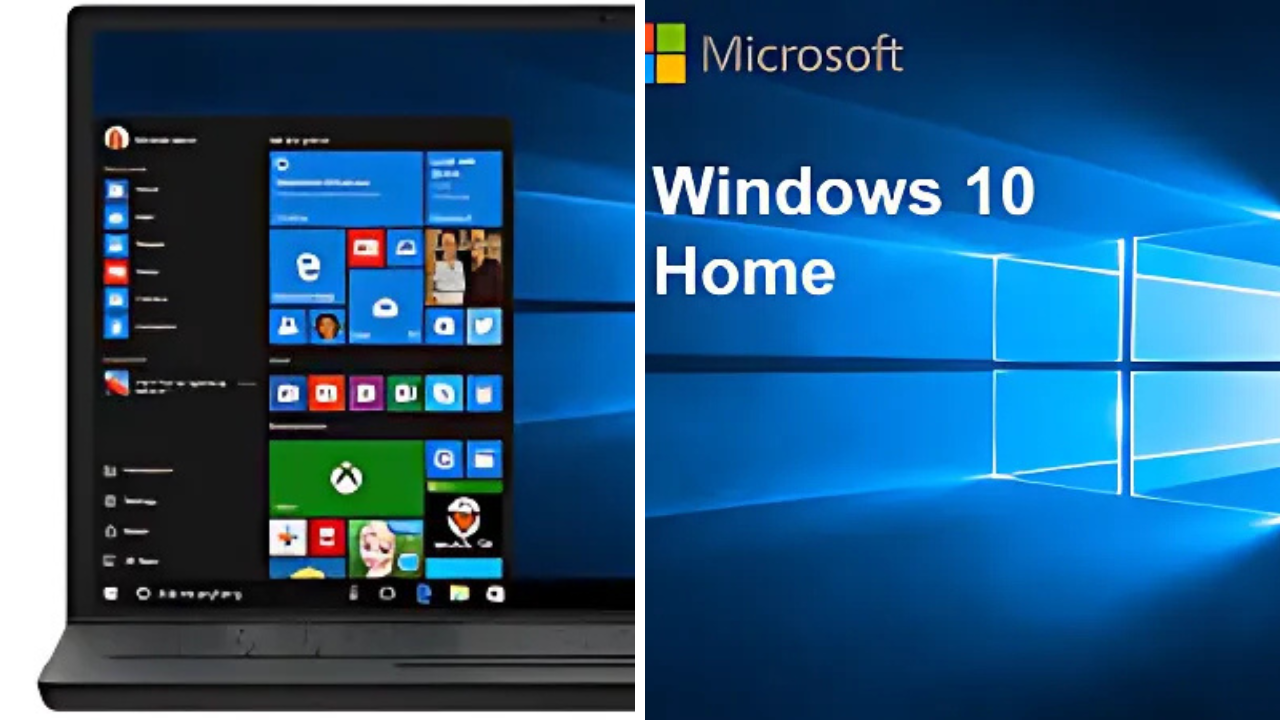
Windows 10 Installation Telugu
Whether you’re a beginner or tech enthusiast, ఈ 2025 complete guide ద్వారా మీరు మీ system కి Windows 10 ని సులభంగా install చేయగలుగుతారు – అది కూడా Microsoft official tools ఉపయోగించి, 100% safe మరియు secureగా!
OnePlus 13s 5G: Unleash the Future
Windows 10 ఇన్స్టాలేషన్కు అవసరమైన Requirements:
Hardware Requirements (మినిమమ్):
-
Processor: 1 GHz or faster
-
RAM: 1 GB (32-bit) / 2 GB (64-bit)
-
Storage: 16 GB (32-bit) / 20 GB (64-bit)
-
Display: 800 x 600 resolution
-
Internet Connection (optional – updates కోసం)
Step 1: Bootable USB తయారు చేయడం
Windows 10 Bootable USB తయారీ ఎందుకు అవసరం?
Windows 10 Install చేయడానికి మేము Bootable USB తయారు చేయడం ఎందుకు అవసరం అంటే, పాత daysలో CD/DVD తో Windows 10 install చేయడం సాధారణం గానీ, ఇప్పుడు majority laptops/CD/DVD drives అందుబాటులో లేకపోవడం వల్ల USB ద్వారా install చేయడం సౌకర్యంగా మారింది. Bootable USB ద్వారా మీరు Windows installation files ని USB లోకి పెట్టి, direct గా system boot అయిపోయాక setup ప్రారంభించవచ్చు.
ఈ Bootable USB తయారీకి మైక్రోసాఫ్ట్ అధికారికంగా అందించే ISO ఫైల్ ఉపయోగించడం చాలా recommended. అలాగే Rufus వంటి tools సహాయంతో ఈ USB ని సులభంగా తయారు చేయవచ్చు.
ఇది చాలా ముఖ్యమైన దశ. Bootable Pendrive లేకుండా Windows install చేయడం సాధ్యం కాదు.
కావలసినవి:
-
కనీసం 8GB Pendrive
-
Windows 10 ISO file (Microsoft Website నుండి download చేయండి)
-
Rufus Software (Bootable USB creation కోసం)
Step-by-Step:
-
Rufus ను మీ PC లో డౌన్లోడ్ చేసుకోండి.
-
Pendrive connect చేయండి.
-
Rufus Open చేసి ISO File ని Select చేయండి.
-
Partition Scheme: GPT (UEFI కోసం) లేదా MBR (Legacy BIOS కోసం)
-
Start బటన్ క్లిక్ చేయండి – ఇది Pendrive ని Bootable గా మార్చుతుంది.
Bootable USB → How to create a bootable USB for Windows 10
Step 2: BIOS/UEFI లో Boot Order మార్చడం
ఎలా చేయాలి?
-
మీ PC లేదా Laptop restart చేయండి.
-
Boot Menu కి వెళ్లడానికి F2, DEL, లేదా Esc (Brand ఆధారంగా) press చేయండి.
-
Boot Priority లో USB Drive ని మొదటి స్థానానికి తీసుకురండి.
-
Save & Exit చేయండి.
Step 3: Windows 10 Installation ప్రారంభం
-
USB ద్వారా PC boot అవుతుంది.
-
“Press any key to boot from USB” అనే Message వస్తే Enter press చేయండి.
-
Windows Setup Screen లో Language, Time, Keyboard layout select చేయండి.
-
“Install Now” బటన్ క్లిక్ చేయండి.
-
Product Key ఉంటే ఎంటర్ చేయండి, లేకపోతే “I don’t have a product key” క్లిక్ చేయండి.
-
Windows 10 version select చేయండి (Home, Pro, etc.)
-
License Agreement Accept చేయండి.
Step 4: Partition Creation & Format
-
“Custom: Install Windows only (Advanced)” ఎంపిక చేయండి.
-
Existing partitions ఉంటే Delete చేయండి (Backup తీసుకున్న తర్వాత).
-
Un allocated Space ని select చేసి “New” క్లిక్ చేయండి – ఇది OS partition create చేస్తుంది.
-
Next క్లిక్ చేయండి – Installation ప్రారంభమవుతుంది.
Step 5: Installation Process
Windows 10 ఇన్స్టాలేషన్ ప్రక్రియలో, ముందుగా Windows files మీ కంప్యూటర్ లోకి కాపీ అవుతాయి. ఇది పూర్తయ్యే వరకు మీరు మీ పీసీని ఆన్ లోనే ఉంచాలి మరియు ఎలాంటి interruptions లేకుండా ఉండేలా చూసుకోవాలి.
Files copy అయిన తర్వాత, పీసీ ఆటోమేటిక్గా ఒకసారి రీస్టార్ట్ అవుతుంది. రీస్టార్ట్ అయ్యే సమయంలో మీరు Bootable Pendrive ని పీసీ నుంచి తొలగించాలి, లేకపోతే మళ్లీ installation మొదలవుతుంది.
రీస్టార్ట్ అయిన తర్వాత, Windows Setup process కొనసాగుతుంది. ఇందులో మీరు కొన్ని personalization options ఎంచుకోవాల్సి ఉంటుంది. ఉదాహరణకి:
మీ Region (Ex : India)
Keyboard Layout (Ex: US, India)
Language Preferences
Time and Currency Format
ఈ stepలో మీరు Microsoft Account లాగిన్ చేయమన్న సూచనలు కూడా రావొచ్చు. లేకపోతే, “Offline Account” లేదా “Limited Experience” ఎంపికలతో కొనసాగవచ్చు.
ఈ సెట్టింగ్స్ను పూర్తిగా పూర్తి చేసిన తర్వాత, Windows 10 మీ కంప్యూటర్లో సిద్ధంగా ఉంటుంది. ఇక మీ సొంతంగా అవసరమైన Apps, Drivers, Antivirus, మరియు Settings apply చేసుకోవచ్చు.
Step 6: User Account Setup
-
Microsoft Account లేదా Local Account create చేయండి.
-
PC Name, Password set చేయండి.
-
Privacy settings configure చేయండి.
Step 7: Post Installation Setup
ఇప్పుడు విండోస్ 10 మీ PC లో install అయింది. కానీ కొన్ని ముఖ్యమైన post-installation steps follow చేయాలి:
Windows Update:
Settings > Update & Security > Check for updates
Drivers Installation:
-
Intel / AMD / Nvidia official sites నుండి drivers install చేయండి.
-
లేదా use a tool like Driver Booster.
Antivirus & Software:
Windows 10 లో ముందుగా Windows Defender అనే antivirus ఉంటుంది. ఇది చాలా మందికి సాధారణ ఉపయోగానికి చాలేలా ఉంటుంది. చిన్న-చిన్న threats, malware, spyware నుండి PCని రక్షించగలదు. మీరు ఎక్కువగా ఇంటర్నెట్ బ్రౌజింగ్, చిన్న ఫైల్స్ డౌన్లోడ్ వంటి వాటికే ఉపయోగిస్తుంటే Windows Defender చాలే సురక్షితంగా పనిచేస్తుంది.
అయితే, మీరు ఎక్కువగా third-party files, cracked software లేదా unknown sources నుంచి ఫైల్స్ ఉపయోగిస్తుంటే, premium antivirus ను ఉపయోగించడాన్ని పరిగణించవచ్చు. Ex: Kaspersky, Bitdefender, Norton, లేదా Quick Heal వంటి software లు మంచి రక్షణను అందిస్తాయి.
సిస్టమ్కి అవసరమైన డేలి యూజ్ అప్లికేషన్స్ను కూడా ఇన్స్టాల్ చేయండి:
- Google Chrome – వేగవంతమైన బ్రౌజింగ్ కోసం
- VLC Media Player – అన్ని video/audio formats ప్లే చేయడానికి
- Microsoft Office లేదా LibreOffice – documents, spreadsheets, presentations కోసం
- WinRAR or 7-Zip – compressed files ను open చేయడానికి
- PDF Reader (Adobe Reader or Foxit Reader) – PDF files చూడడానికి
- Zoom, Google Meet, Teams – video calls మరియు meetings కోసం అవసరమైతే
మీ అవసరానికి తగ్గట్లు సాఫ్ట్వేర్లు ఎంచుకొని install చేసుకోవచ్చు. అన్ని అప్లికేషన్స్ను సురక్షితమైన అధికారిక వెబ్సైట్ల నుంచి మాత్రమే డౌన్లోడ్ చేయడం మంచిది.
Installation అనంతరం చేయాల్సిన ముఖ్యమైన పనులు
Windows 10 install చేసిన తర్వాత, కొన్ని ముఖ్యమైన సెట్టింగ్స్ మరియు updates చేయడం చాలా అవసరం.
-
Windows Updates:
కొత్త OS version కోసం Microsoft ఎప్పటికప్పుడు security updates, bug fixes, మరియు feature upgrades రిలీజ్ చేస్తుంది. ఈ updates ని నిరంతరం చెక్ చేసి install చేసుకోవాలి. -
Drivers Installation:
System లోని Hardware components (గ్రాఫిక్స్ కార్డ్, సౌండ్ కార్డ్, WiFi, LAN మొదలైనవి) సరిగ్గా పనిచేయాలంటే latest drivers ఉండాలి. Intel, AMD, Nvidia official వెబ్సైట్ల నుండి మీ hardware కి సరిపోయే drivers డౌన్లోడ్ చేసి install చేయండి. లేకపోతే Driver Booster లాంటి software ఉపయోగించవచ్చు. -
సెక్యూరిటీ Measures:
Windows Defender ప్రీ-ఇన్స్టాల్ అయిన Antivirus గా చాలా మందికి సరిపోతుంది, కానీ మీరు ఇంకో ఏదైనా trusted third-party antivirus software ఇన్స్టాల్ చేయడం మంచిది. -
Daily-use Software Install:
Chrome బ్రౌజర్, VLC media player, Microsoft Office, Adobe Reader వంటి softwareలు మీకు ప్రతి రోజూ అవసరం అవుతాయి. ఇవి వేరుగా డౌన్లోడ్ చేసి install చేయండి.
FAQs
Q1: Product Key లేకుండా install చేయచ్చా?
అవును, “I don’t have a product key” ఎంపిక ద్వారా install చేయవచ్చు. మీరు తరువాత activate చేసుకోవచ్చు.
Q2: Windows 10 install చేసేప్పుడు internet కావాలా?
Installation process కి internet అవసరం లేదు, కానీ updates కోసం తరువాత అవసరమవుతుంది.
Q3: BIOS లో USB ని detect చేయకపోతే?
Legacy Mode లేదా UEFI settings ని change చేయండి. Rufus లో Partition Scheme సరిచూసుకోండి.
విండోస్ 10 install చేయడం అనేది కొంచెం జాగ్రత్తగా చేయాల్సిన పని. పై చెప్పిన స్టెప్స్ ద్వారా మీరు సులభంగా Windows OS ని install చేయవచ్చు. మీరు కొత్తగా ఉంటే కూడా ఈ guide చాలా సహాయపడుతుంది.
📌 మీరు కూడా మీ PC ని upgrade చేయాలనుకుంటే, ఈ guide ని follow చేయండి మరియు Bravyn Tech ని తరచూ సందర్శించండి.
Thanks for every other fantastic post. Where else could anybody get that kind of information in such an ideal way of
writing? I’ve a presentation next week, and I’m on the
look for such information.